If you’re using Kiro and want to debug your C# applications, we can add the netcoredbg-mcp.
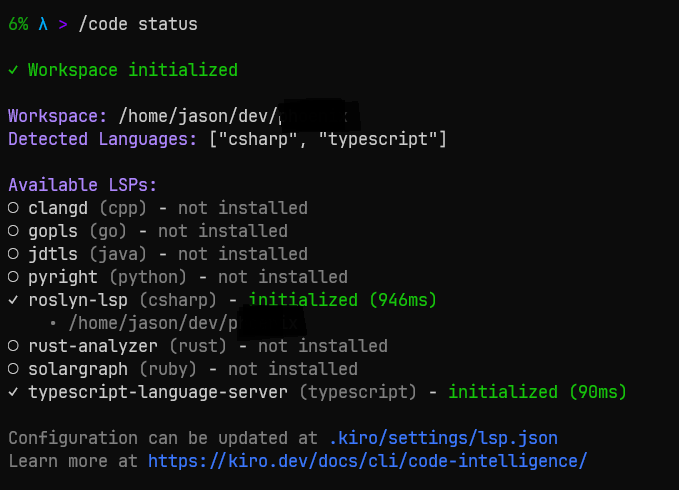
If you’re looking to add the roslyn-language-server, you can read my article on that here: Using C#/Roslyn LSP with Kiro-CLI
We’re going to be installing the netcoredbg-mcp maintained here: https://github.com/thebtf/netcoredbg-mcp
A huge thank you to @thebtf for creating and maintaining this project!
Netcoredbg is an open source dotnet debugger created and maintained by Samsung. @thebtf has graciously wrapped it up in a MCP server.
Step 1. Install
Follow the install instructions in the readme: https://github.com/thebtf/netcoredbg-mcp
As of this writing, it’s simply:
pip install netcoredbg-mcp
netcoredbg-mcp --setup
Step 2. Configure the MCP server in Kiro
In the .kiro/settings/mcp.json:
{
  "mcpServers": {
    "netcoredbg": {
        "command": "netcoredbg-mcp",
        "args": ["--project-from-cwd"],
    }
  }
}
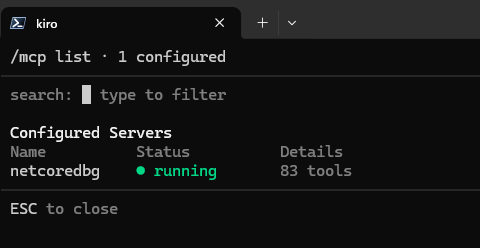
That’s it! If you start kiro-cli and run /mcp you should see netcoredbg loaded…
Step 3. Allow the tools (Optional)
If you don’t want kiro to ask permission every time it wants to do something with the debugger, you can add it to the allowed tools section of the agent config:
To allow all the tools:
"allowedTools": [ "@netcoredbg" ]
To allow only selective tools, list them individually:
"allowedTools": [ "start_debug", "stop_debug" ]
There are 83 tools and I see no reason why Kiro can’t use them all in my environment, so I just all them all.
Conclusion
While there is no native integration like with GitHub Copilot, we can use the open source netcoredbg C# debugger to allow Kiro CLI to debug C# applications.
Again, shout out to @thebtf for making debugging dotnet in any AI agent possible!
Cheers!